Your to-do list,
gently on the desktop
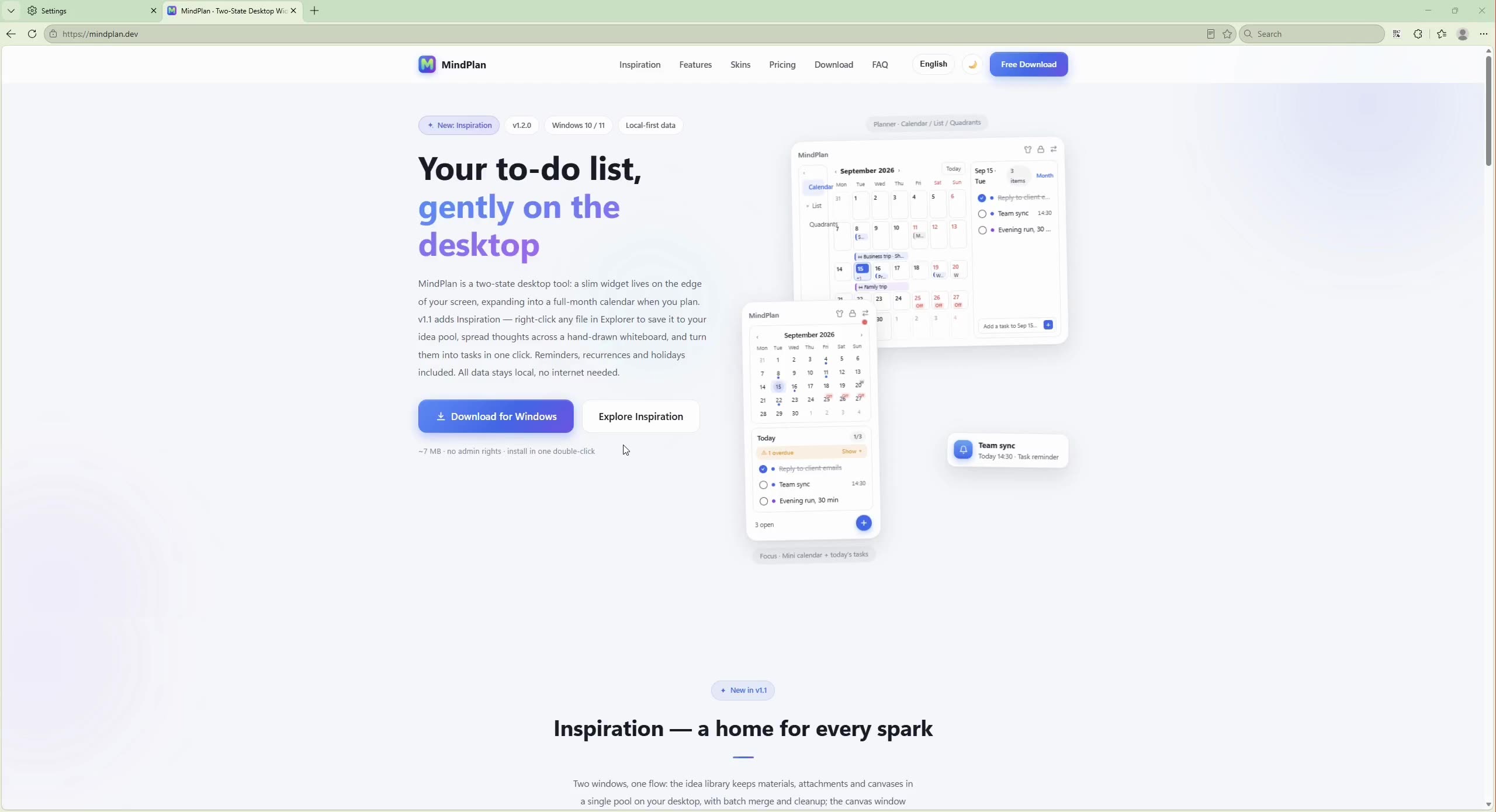
MindPlan is a two-state desktop tool: a slim widget lives on the edge of your screen, expanding into a full-month calendar when you plan. v1.1 adds Inspiration — right-click any file in Explorer to save it to your idea pool, spread thoughts across a hand-drawn whiteboard, and turn them into tasks in one click. Reminders, recurrences and holidays included. All data stays local, no internet needed.
See MindPlan in action
Real screen recordings, unedited — how it works and how to install.
 1:01
1:01
 0:29
0:29
Inspiration — a home for every spark
Two windows, one flow: the idea library keeps materials, attachments and canvases in a single pool on your desktop, with batch merge and cleanup; the canvas window spreads a hand-drawn whiteboard. Drag materials onto the board from the sidebar — and turn selected text into a task in one click.
Right-click to collect
Right-click selected files in Explorer to collect them — multi-select supported. Images are archived automatically; URLs fetch their title and preview.
One pool for ideas & canvases
Ideas and canvases in one list: list or grid layout, filters and sorting; batch or drag-to-merge. View and window states are all remembered.
Hand-drawn whiteboard
A streamlined Excalidraw core: rectangles, arrows, freehand and text on three paper styles — autosaved, fully offline.
Drop it in
Drag images, files and links onto the canvas to turn them into cards: images are embedded, documents open on a double-click.
Drag ideas onto the canvas
Alt+S opens the material sidebar; drag a whole card onto the board as a reference. Double-click it to jump back to the library.
Six-color stickies
Six-color stickies pin anywhere on the canvas — double-click to write, no corner of your brainstorm goes unused.
One click to a task
Right-click ideas, board text or stickies to make tasks, with attachments carried over; Alt+C captures a thought in 3 seconds.
Skins everywhere
Library, canvas, quick capture and widget share one theme — skin and light/dark switches sync instantly.
Details built for focus
It never gets in the way — it’s simply there when you need it.
Two-state widget
In focus mode it’s a slim side widget: mini calendar, today’s tasks and what’s next at a glance — expand it into a full-month calendar anytime.
Task reminders
Due tasks pop a system notification so nothing slips; overdue tasks turn orange automatically to show what needs attention first.
Recurring tasks
Daily water, weekly reports, monthly bills — set the rule once and the next occurrence appears automatically after you finish one.
Links & attachments
Web links, local files and dropped attachments in notes are detected automatically and open on click. Multi-instance desktop notes capture thoughts anywhere.
Tray & global hotkeys
Lives in the system tray, one click away. Alt+Q summons the widget, Alt+T creates a task globally, Alt+G opens the idea library — from any app.
Local storage · Backup
Data lives in an on-device SQLite database — no account, no internet. One-click backup and restore built in.
20 skins to match today’s mood
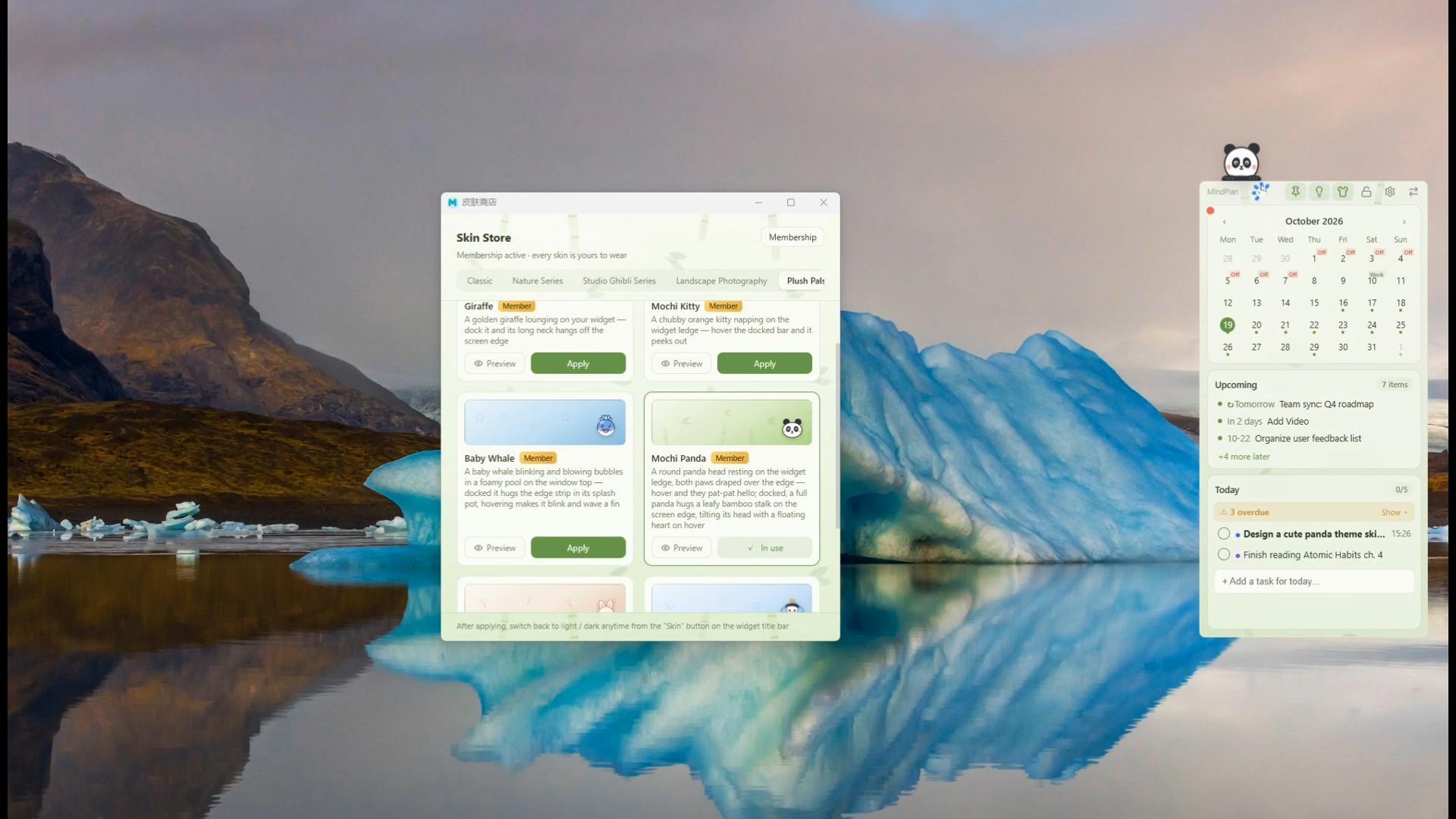
From clean solids to Ghibli scenes — the widget, idea library, canvas and quick capture all switch looks together; light and dark modes are both covered.
Classic
Nature Series
Studio Ghibli Series
* Skins switch in one click inside the app; some are available from the in-app skin store.
Start free, upgrade when you need
Core features are free forever. Membership unlocks every skin, unlimited tasks / ideas / boards, and cross-device sync on the same email.
Free
$0
- Focus widget + full-month planner
- Reminders / recurring tasks / global search
- 15 tasks · 5 ideas · 3 boards
- Cloud & Obsidian skins
Monthly
$1.99/mo
- All 20 skins, with new ones added
- Unlimited tasks / ideas / boards
- Restore on any device with the same email
Auto-renews monthly (USD). Cancel anytime — benefits last until the period ends.
Download & SubscribeYearly
$9.99/yr
- All 20 skins, with new ones added
- Unlimited tasks / ideas / boards
- Restore on any device with the same email
Auto-renews yearly (USD). Cancel anytime — works out to ~$0.83/mo.
Download & SubscribeLifetime
$24.99 one-time
- All 20 skins, with new ones added
- Unlimited tasks / ideas / boards
- Forever — no subscription, no renewals
One-time payment (USD). Restore on any device with the same email.
Download & Subscribe* All prices in USD and include the full benefits of the chosen plan. Subscriptions auto-renew monthly / yearly and can be canceled anytime. Payments and refunds are handled by Waffo Pancake (merchant of record: Waffo.com Limited); international cards supported. Membership status is authoritative on the server and syncs automatically once you sign in with the same email.
Download now
Free to use. Installs to your user folder with a double-click — no admin rights needed.
Download MindPlan v1.2.0SHA-256 checksum
1DC2113B420BE1AAFD79DFEA14C9751E959D340272B262CB566033D21EBEBE2C
⚠️ The installer isn't code-signed yet, so your browser or Windows may flag it as 'unsafe' — that's expected. Keep it like this: (1) Edge download warning 'This file might harm your computer' → tap '…' next to the file → 'Keep' → 'Keep anyway'; (2) if the blue SmartScreen says 'Windows protected your PC' on first run → click 'More info' → 'Run anyway'. To verify integrity, compare the SHA-256 checksum above.
Click the button on the left — about 7 MB, done in seconds.
Per-user install, no admin rights; silent installation supported.
The widget appears on your desktop; enable auto-start in Settings. Alt+Q summons / hides the widget · Alt+T creates a task anywhere · Alt+C quick-captures ideas · Alt+G opens the idea library.
FAQ
Where is my data stored? Is it uploaded to the cloud?
No. All tasks and settings live in an on-device SQLite database (%APPDATA%\com.desktopcompanion.v2\). The app works fully offline.
Will upgrading lose my task data?
No. Installing a new version over the old one keeps all data. One-click backup and restore is built in — back up that data folder before reinstalling your OS.
What is "Inspiration"? Does the whiteboard need internet?
Inspiration is a module new in v1.1, made of two windows: the "Idea Library" is a global pool where ideas and canvases share one list — list or grid layout, type filters and sorting, drag files or paste screenshots / URLs to collect them, and batch-select to merge or delete; the "Idea Canvas" is the whiteboard window where Alt+S opens a material sidebar and idea cards can be dragged onto the board as references. Drag images, files and links onto the canvas, place colored stickies, and turn ideas or whiteboard text into tasks from the right-click menu. The library, canvas and quick-capture windows all follow the widget’s theme and skin, syncing instantly on every switch. The whiteboard core is fully localized — fonts and assets work offline, no internet needed.
How do I enable or disable "Add to Inspiration" in Explorer?
Toggle it in the app under Settings → Inspiration → Explorer context menu. When on, select files in Explorer (multi-select works) and right-click to add them: images get an archival copy inside the app, so a collected image survives even if the original moves or is deleted, while other files only keep their original path. Turning it off removes the system menu entry cleanly.
Is the software free?
Yes, the app itself is completely free and ships with several free skins; more are available from the in-app skin store.
Does installation require admin rights?
No. The installer uses per-user mode and installs into your user folder with a double-click. It also supports the /S flag for silent installation, handy for mass deployment.
Is macOS or Linux supported?
Currently Windows 10 / 11 (x64) only. The app relies on Windows-specific features such as frameless transparent windows; other platforms are not planned for now.
Will launching it twice open two widgets?
No. A single-instance mechanism is built in — a second launch just brings the running widget to the front.
How do I get a membership? Which payment methods are supported?
Bind your email in Settings → Member Center inside the app, then choose monthly / yearly subscription or a one-time lifetime purchase. Payments are handled by Waffo Pancake (international cards supported) and the checkout page is pre-filled with your bound email. Activation codes work too.
Will my membership survive a new computer or reinstall?
Yes. Membership is tied to your email: sign in on the new device with the same email (a verification code, no password) and your membership is restored automatically. For tasks, use the built-in backup feature to migrate.
Wrong email at checkout / want a refund?
If the checkout email differs from your bound email, send us the order number and we'll sync it manually. Subscriptions can be canceled anytime (the paid period stays active); refund-eligible orders can be requested self-serve via the Waffo Pancake customer portal.